
Learn how to edit guide descriptions, screenshots, and steps.
Inserting a new step in a Guide
Chethna
Jul 10, 2025
How to insert a new step in the guide?
Once Trainn generates your step-by-step guide, you may need to modify it to meet your specific requirements. This might involve inserting extra steps between existing ones to provide complete instructions. Trainn offers multiple ways to add additional content into your existing guides.
Steps to add Additional steps
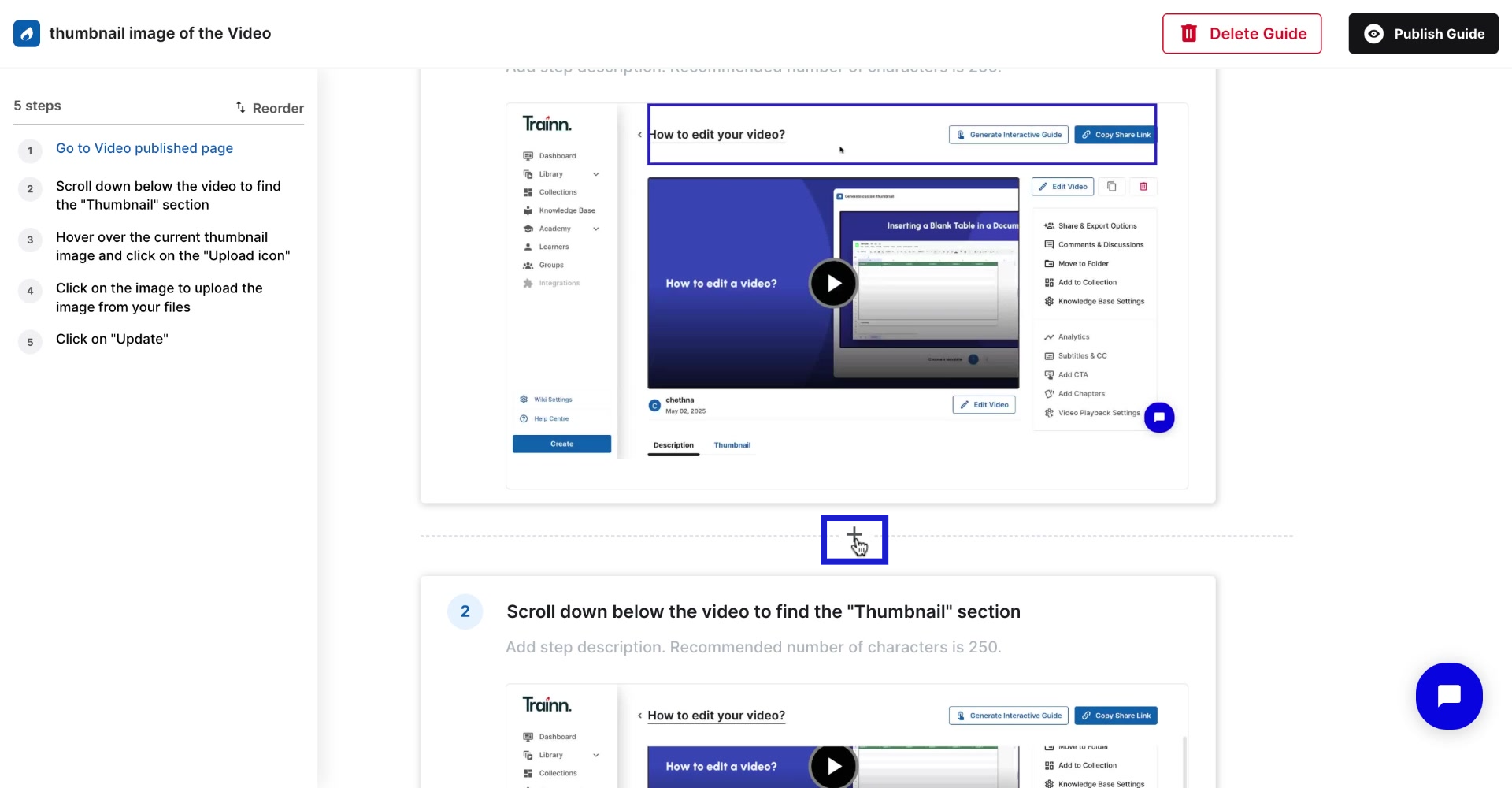
Click the Plus icon below any existing step where you want to insert new content
Choose from the following options based on your needs
New step options
The following are ways you can add a new step in the guide:
Record screen to capture workflow
You can use this option to add new steps by recording additional actions/workflow directly within the platform.
Add step from existing recordings
Select this option to extract and insert a screen image from your existing recordings.
Add blank step
Blank step helps to create custom instructions with only explanatory content and the option to upload your own image from your system.
To upload an image from your system,
Click on the plus icon > add blank step
Select the upload image
Add Warning
Use this to highlight important cautions or potential issues. Place the warning block after the relevant step to alert users about critical information and help them avoid errors.
Add Information
This option allows you to share helpful tips, recommendations, or additional context. This can be added after a step where learners might benefit from extra guidance or best practices.
Note: Information and Warning blocks are considered supplementary content and don't count as consecutive numbered steps in your guide.
