
Email Settings
Email Settings allow you to manage the email account used by Trainn to send and receive emails, such as notifications and system-generated messages. You configure email settings when you want to customize how your academy communicates with learners and ensure emails are sent from your preferred domain.
When you configure email settings, all the emails your customers receive, such as digest emails, notification emails, can be modified to be delivered through your email service provider.
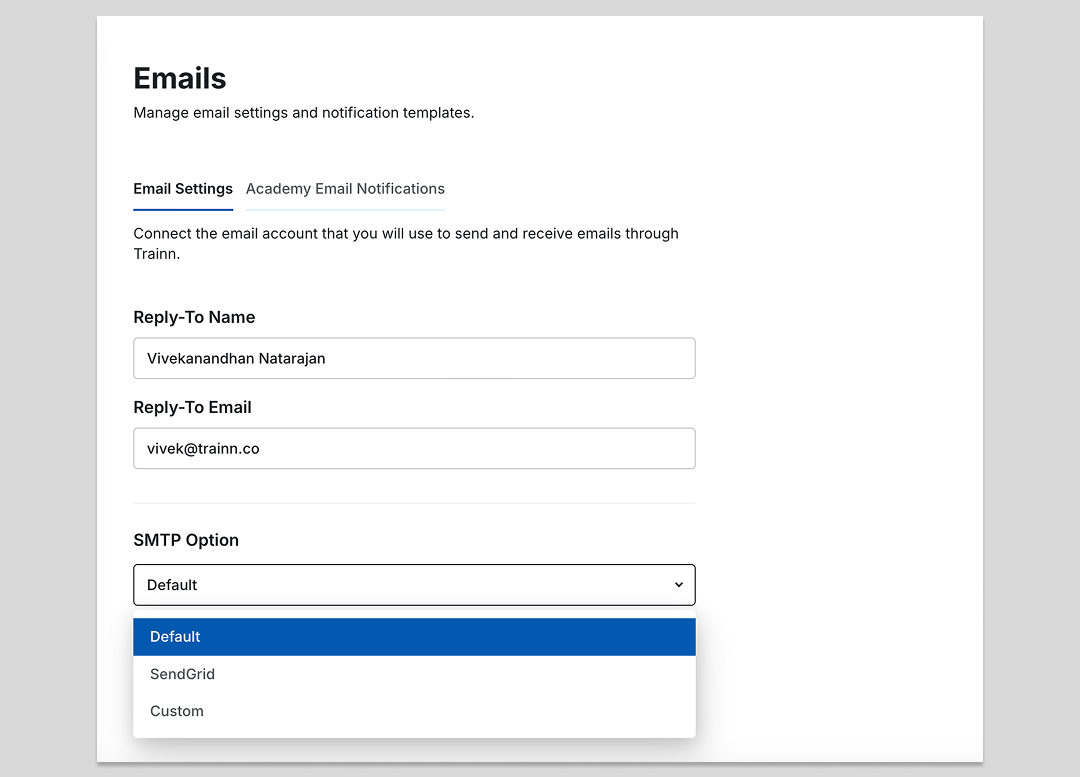
Email Settings are configured based on the Simple Mail Transfer Protocol (SMTP) option selected. SMTP is the set of rules and the service that allows Trainn to send emails reliably to anyone, anywhere on the internet.
Configure Default SMTP Option
When you choose the Default option, you can modify only the reply-to settings:
Navigate to Email Settings from the left-side navigation bar
Select Default as your SMTP option
Enter the Reply-to name - The name to which replies will be sent
Enter the Reply-to email - The email address to which replies will be sent
Click Save
The email will be sent from support@trainn.co, and only replies can be routed to an email address of your choice.
2. Configure SendGrid SMTP Option
SendGrid is a cloud-based email platform that helps businesses send large volumes of emails reliably and efficiently.
Steps
Log in to your SendGrid account
Generate an API Key within their platform
Ensure the API Key has the necessary permissions for sending emails
Copy the generated API Key
Navigate to Email Settings in Trainn
Select SendGrid as your SMTP option
Paste the API Key into the API Key field
Configure sender address
Enter the From Name - The name from which the email will be sent
Enter the From Email - The sender email address
Click Save
Security Note: Treat your API Key as confidential. Do not share it publicly.
When learners receive email notifications, they will be from your specialized domain.
3. SMTP Option: Custom
The Custom SMTP option allows you to integrate Trainn with your own email server or a third-party SMTP service that is not pre-listed. This provides maximum flexibility and control over your email sending infrastructure.
Configuration:
Steps
Gather the following details from your email service provider or IT department:
SMTP Server Address: The hostname or IP address of your outgoing mail server (e.g., smtp.yourdomain.com)
Port Number: The port number used by your SMTP server for sending emails (common ports are 25, 465, or 587)
Username: The username (often your full email address) for authenticating with your SMTP server
Password: The password for the email account used to authenticate with the SMTP server. For some providers (like Gmail with two-factor authentication), you might need an App Password
Navigate to Email Settings in Trainn
Select Custom as your SMTP option
Enter the SMTP server details collected in step 1
Test the connection to ensure proper configuration
Click Save
Configuring sender address
7. Setup the From Name and From Email for the email
Additional Documents
If you are setting up custom SMTP configuration via Microsoft, refer to this documentation.
If you are setting custom SMTP configuration via Google, refer to this documentation.
Configure Academy Email Notifications
Academy email notifications allow you to customize automated emails sent to learners for various events.
Steps
Navigate to Email Settings from the left-side navigation bar
Click Academy Email Notifications
Click Enable to enable email sending for each email topic
Click Edit Template to modify the email content for specific categories
Email Categories
To customize email notification templates:
Navigate to Email Settings
Select Academy Email Notifications from the top menu bar
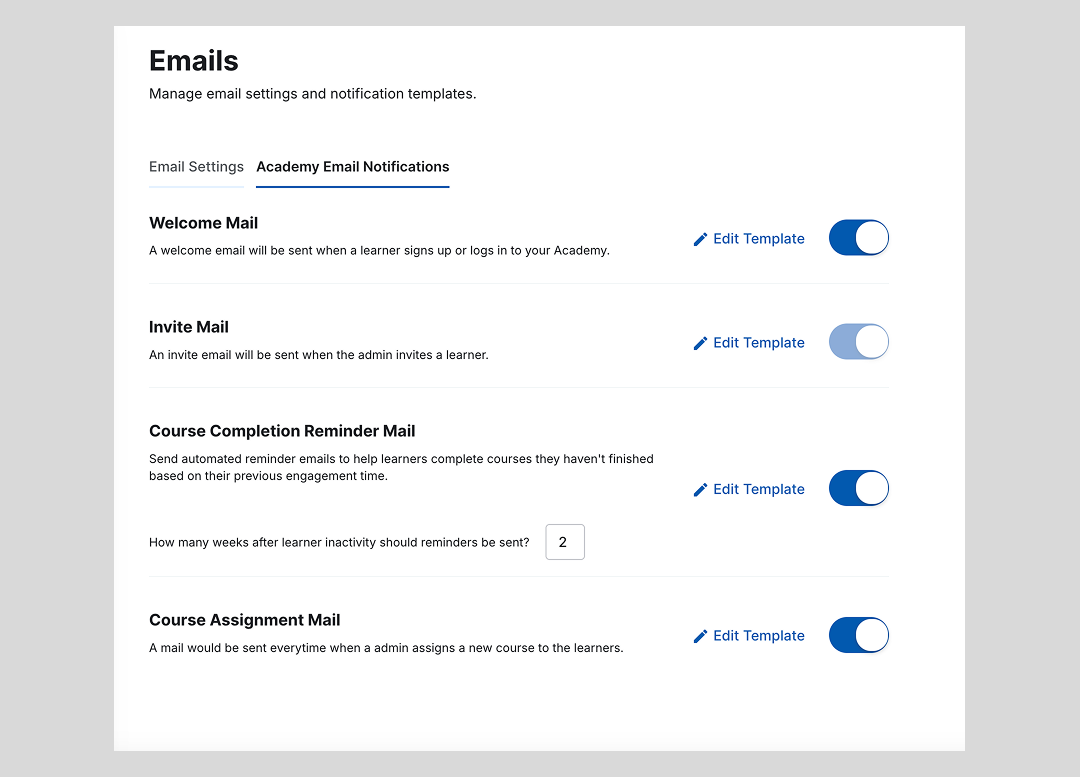
Welcome Mail Enable Welcome mail to send an email when a learner signs up or logs in to your Academy.
Invite Mail Enable invite email to be sent when the admin invites a learner to their academy.
Learn how to invite learners to academy.
Course Completion Reminder Mail: Send automated reminder emails to help learners complete courses they haven't finished.
You can set the duration (after how many weeks of learner inactivity should reminder emails be sent).
Course Assignment Mail: An email is sent when an admin assigns a new course to learners, notifying the learner about the course assignment.
