
In this Article we will cover setting up SAML Application using Microsoft Entra ID SAML.
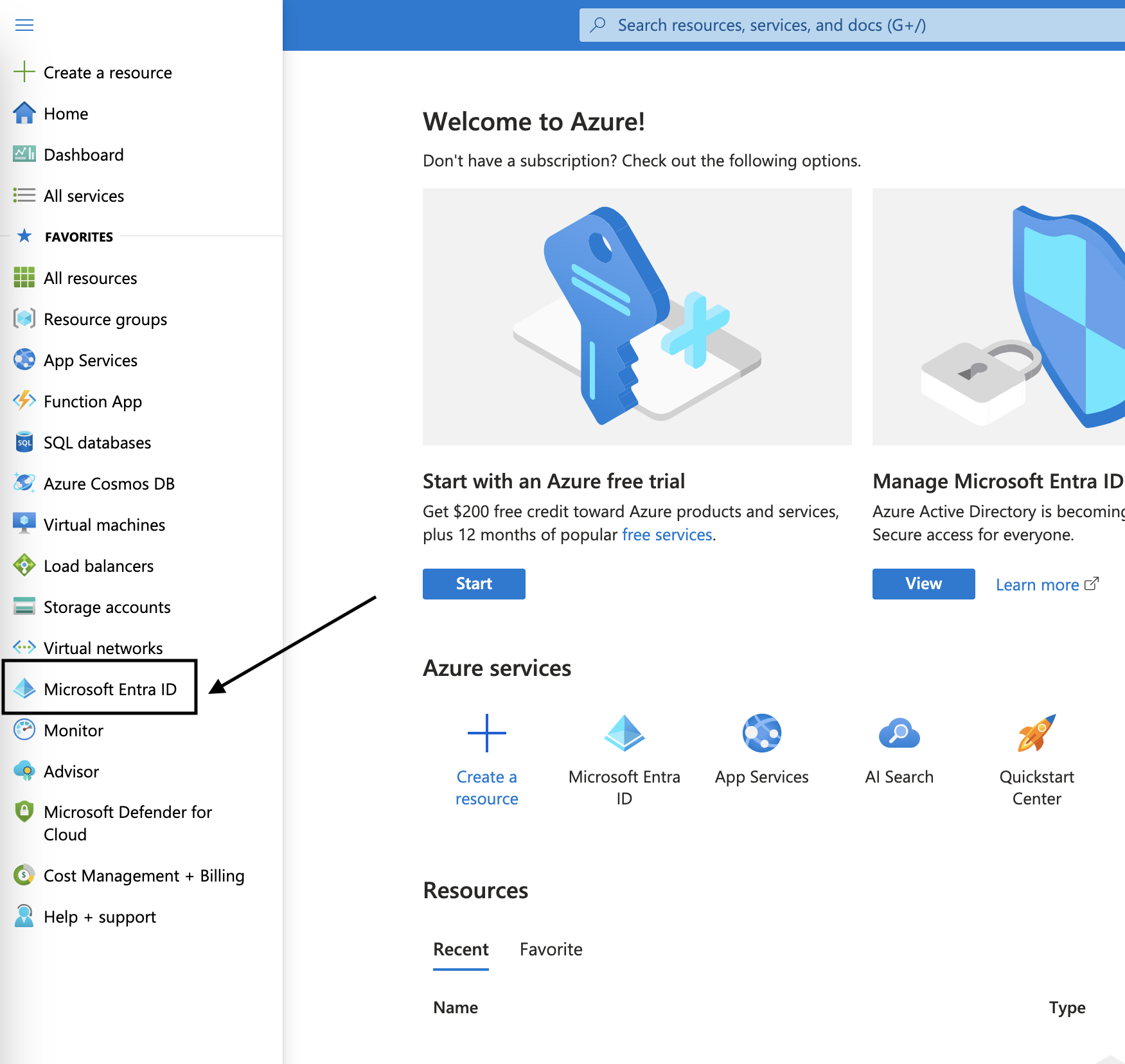
From Azure Admin Console, click on Microsoft Entra ID from the left navigation menu.
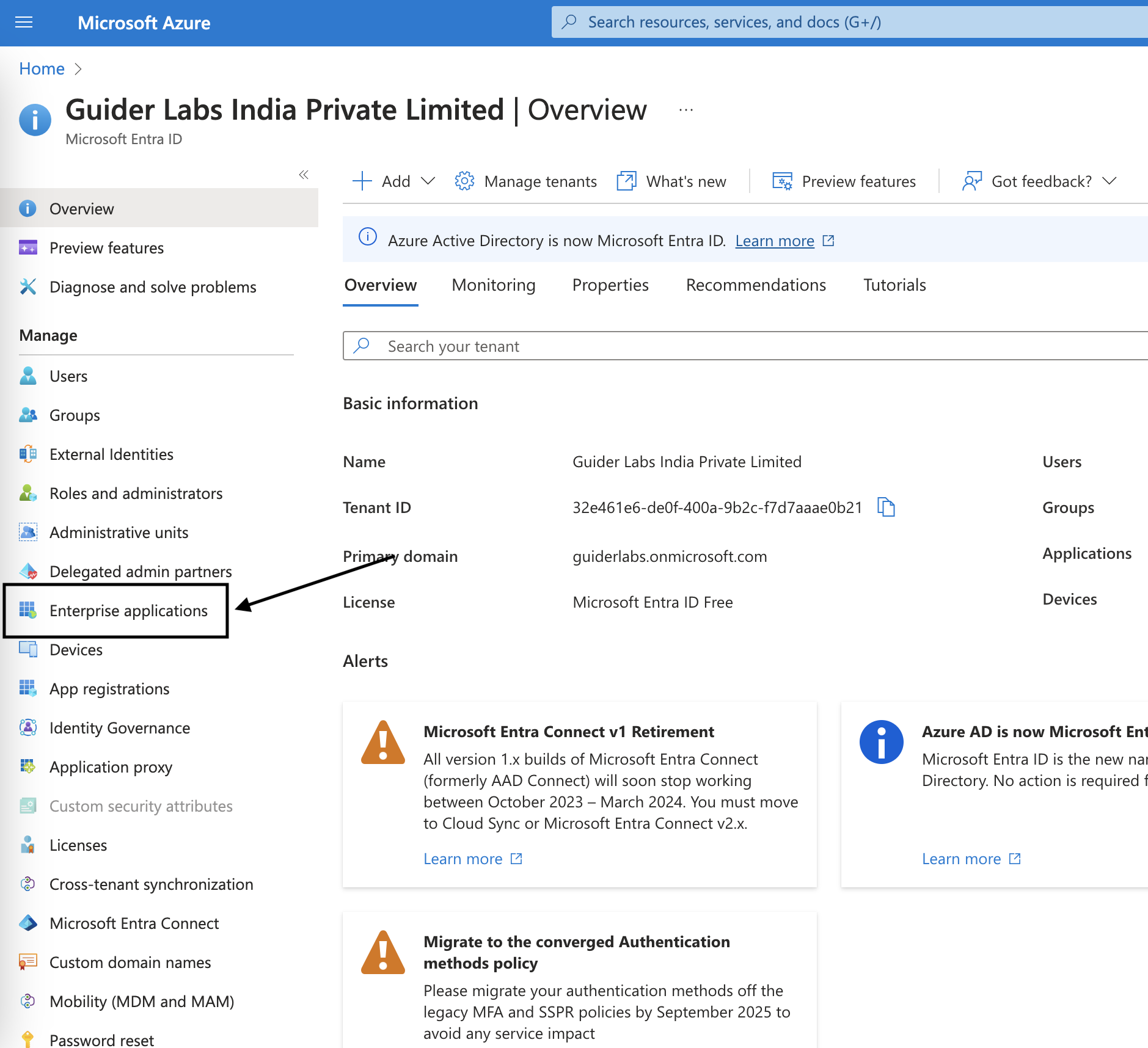
From Microsoft Entra ID overview page, Click on Enterprise Applications from the left navigation menu.
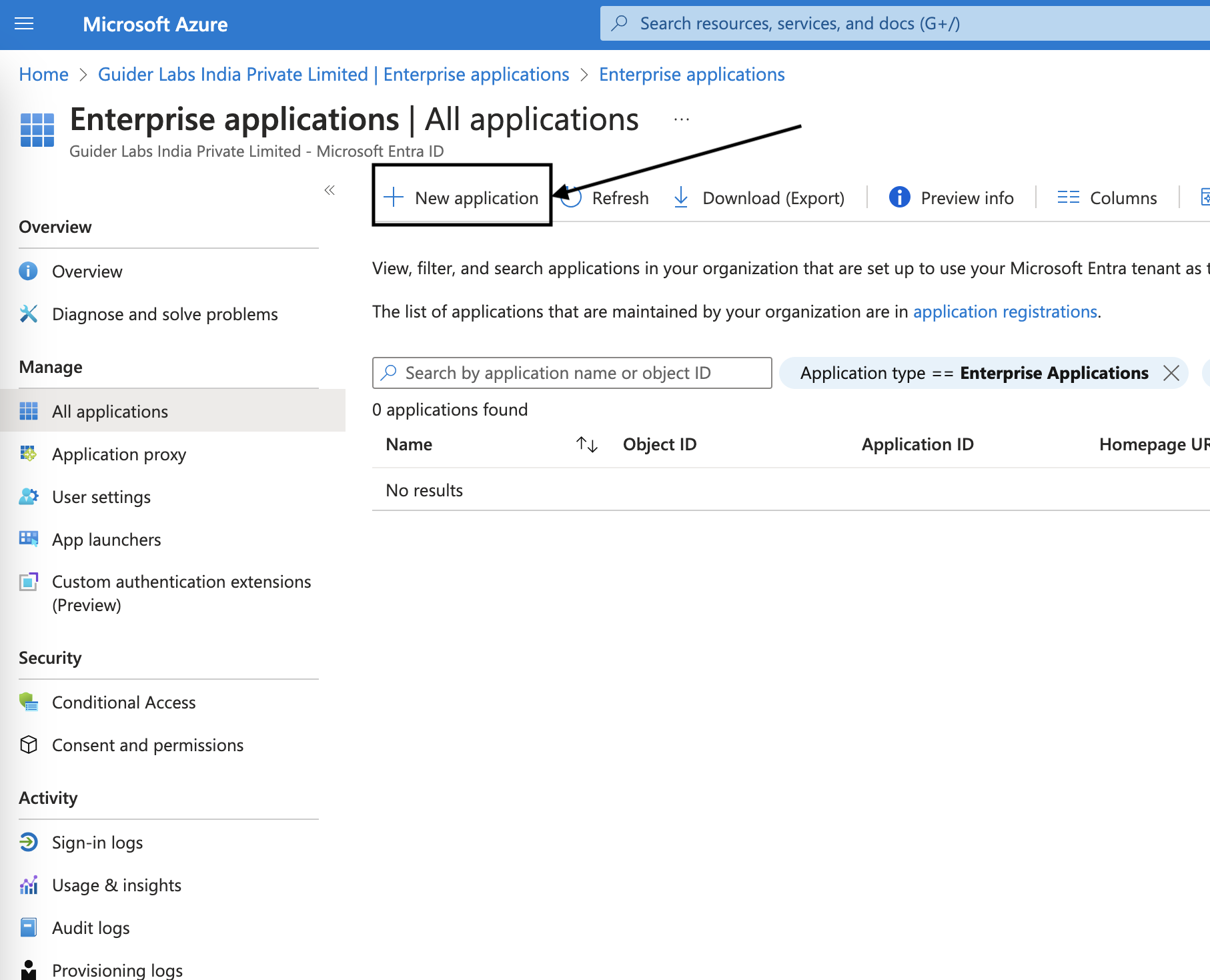
Click New Application from the top to create an Application
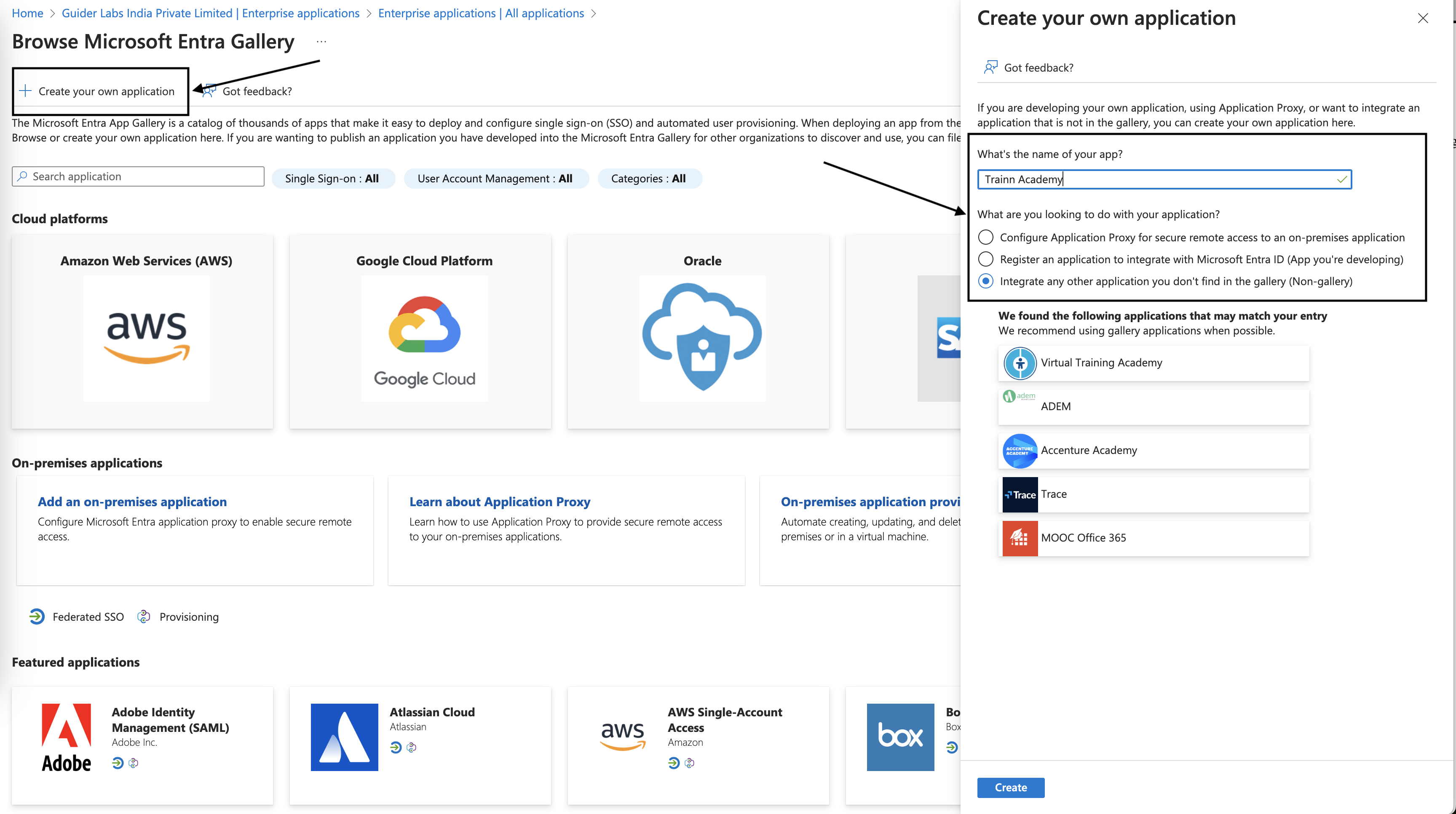
From next screen click Create your own application. Provide the Application name and click create.
Select Single sign-on from the manage section and select SAML option.
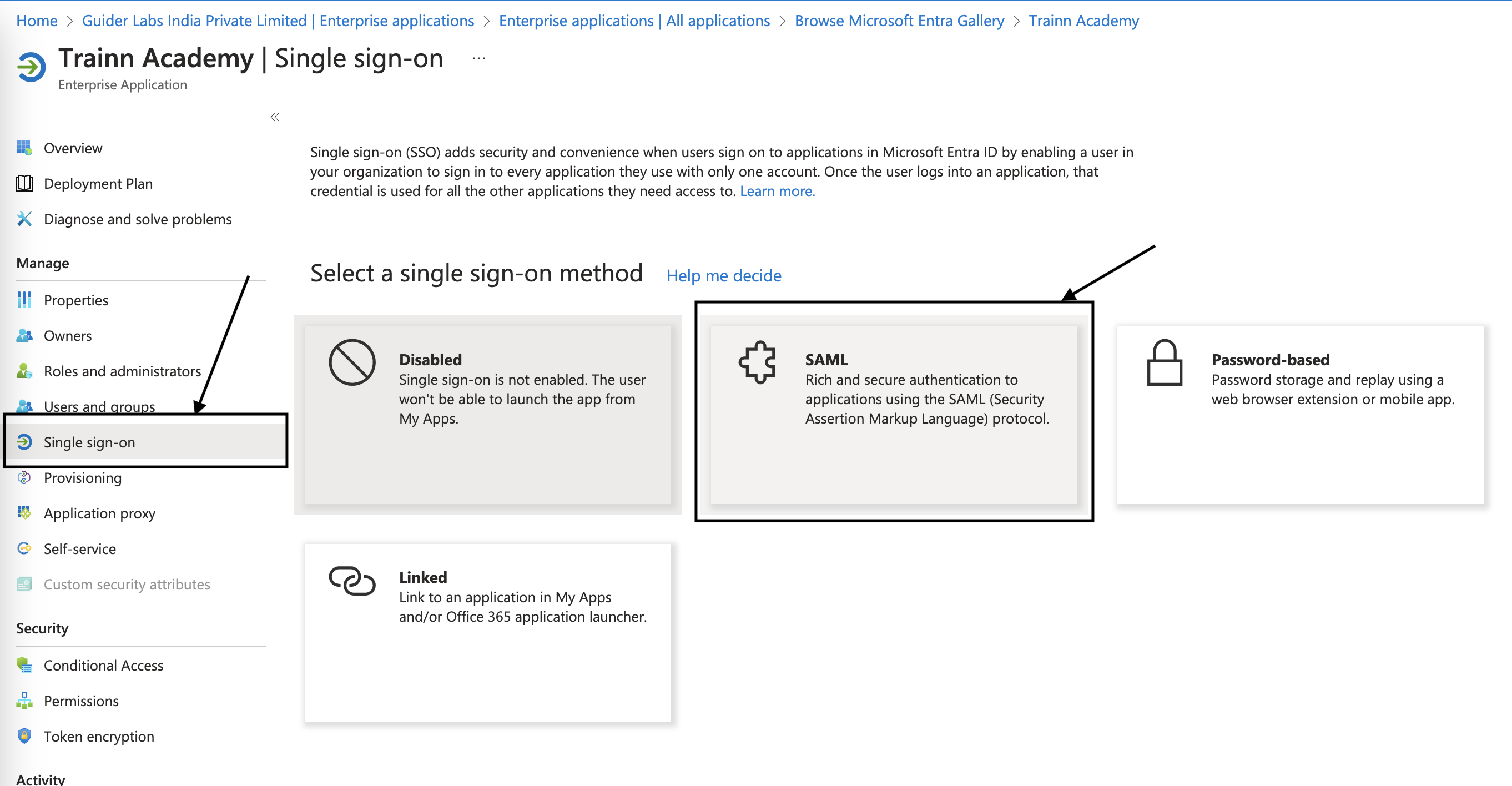
Edit Basic SAML Configuration and enter values for
Identifier (Entity ID) with values,
If configuring for academy - https://{workspace-name}.api.trainn.co/academy
If configuring for video hub - https://{workspace-name}.api.trainn.co/hubReply URL (Assertion Consumer Service URL) with values
If configuring for academy - https://{workspace-name}.api.trainn.co/academy/saml/acs
If configuring for video hub - https://{workspace-name}.api.trainn.co/hub/saml/acs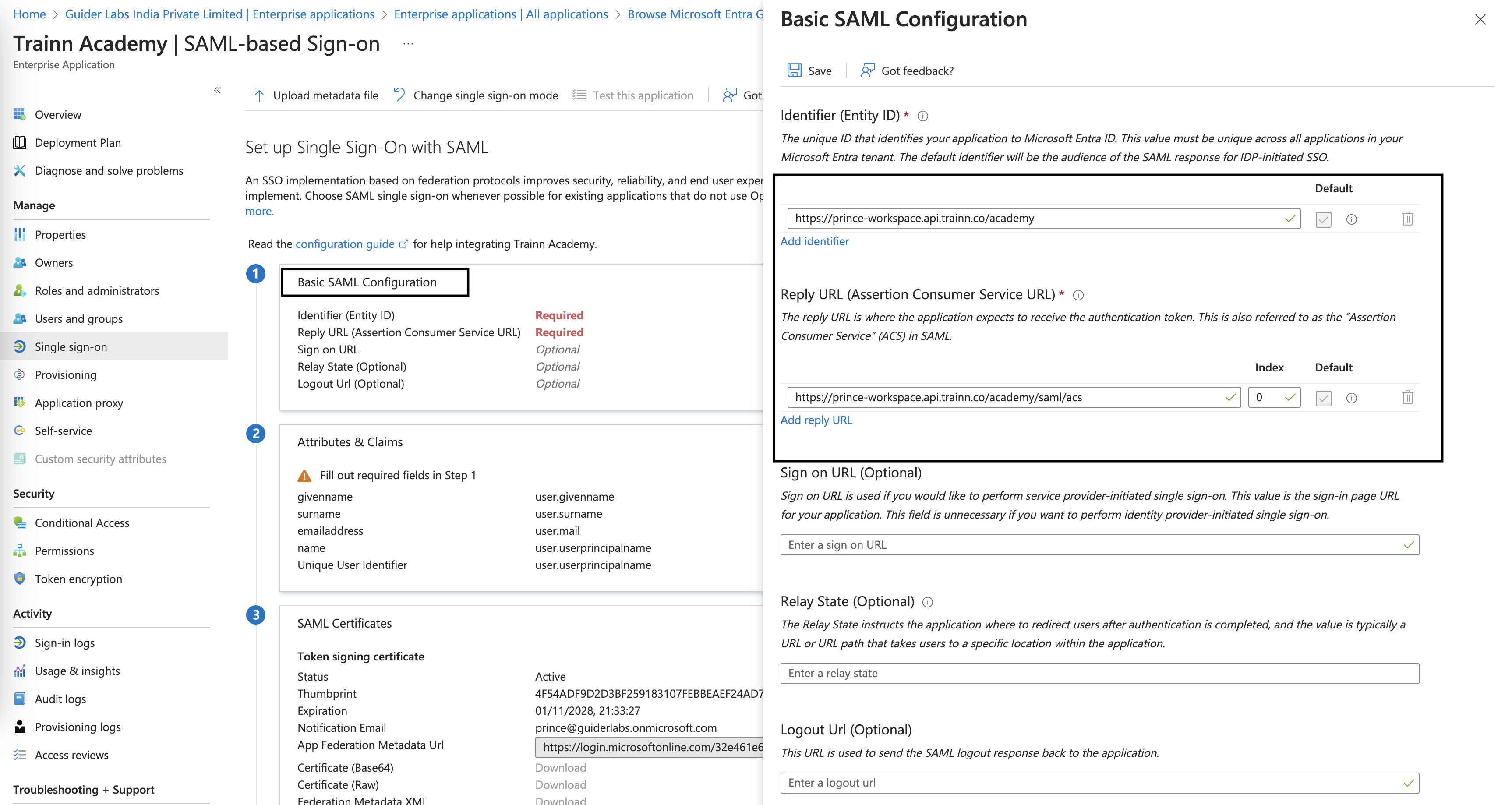
Note: Workspace domain name can be found in the settings page.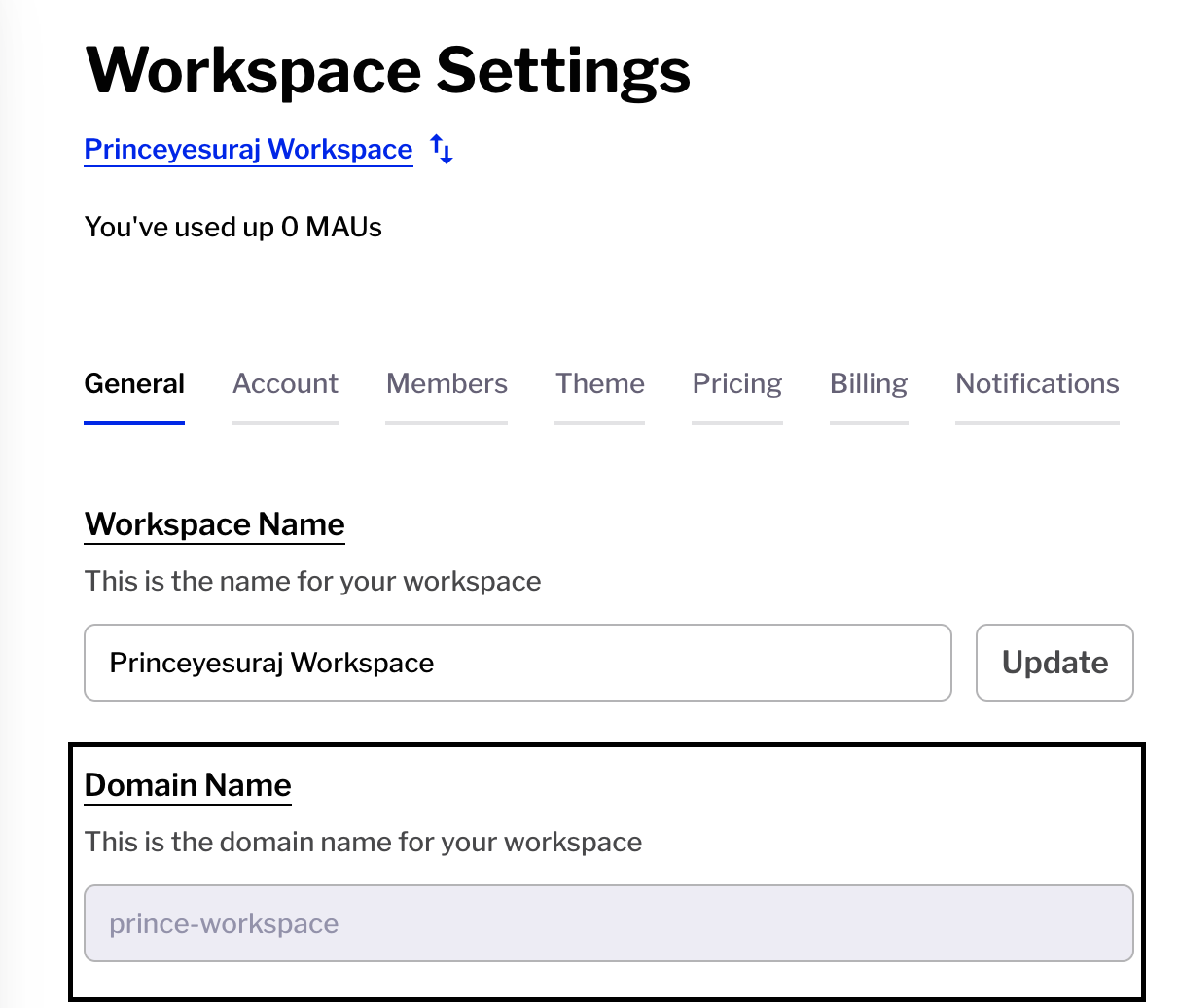
Download Certificate in Base64 format and Copy the Login URL for configuring the SAML in Trainn Video Hub or Academy.
Note: Open the Base64 Certificate with any Text Editor and copy the contents to configure SAML in Trainn.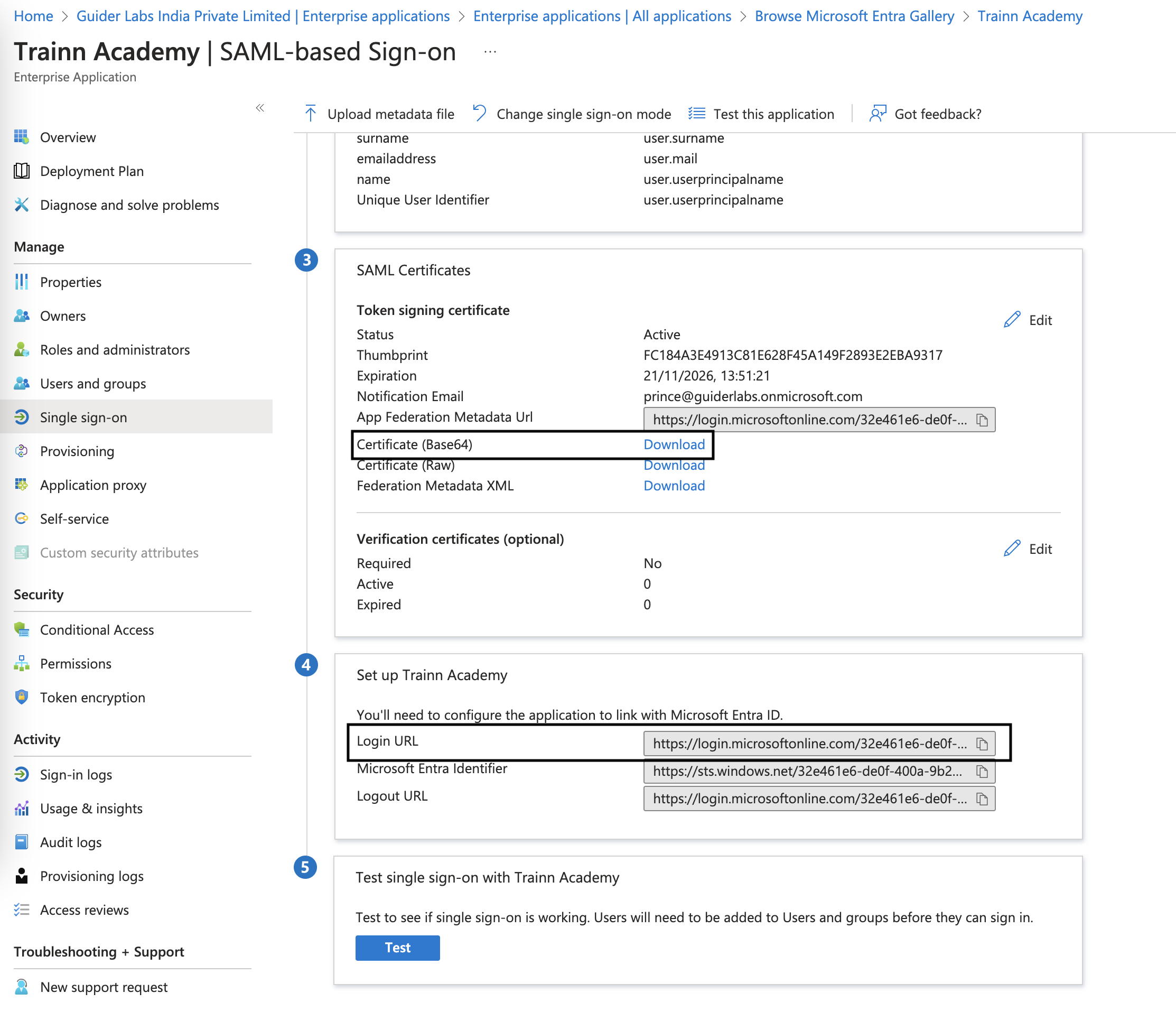
Make sure you add users to the application under users and groups from the left navigation menu.
