In this Article we will cover setting up SAML Application using Keycloak SAML.
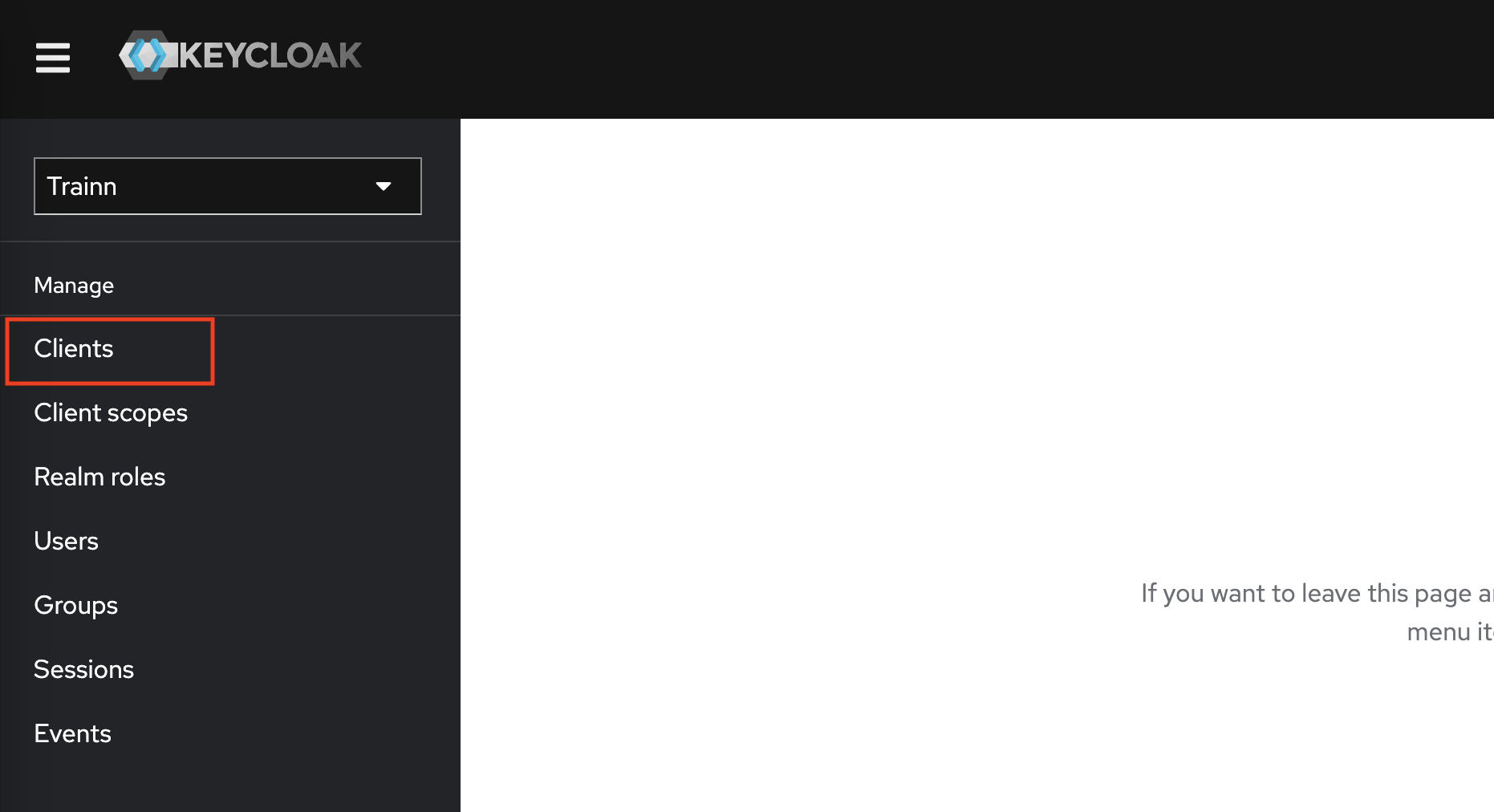
From Keycloak Admin Console, click on Clients from the left navigation menu.
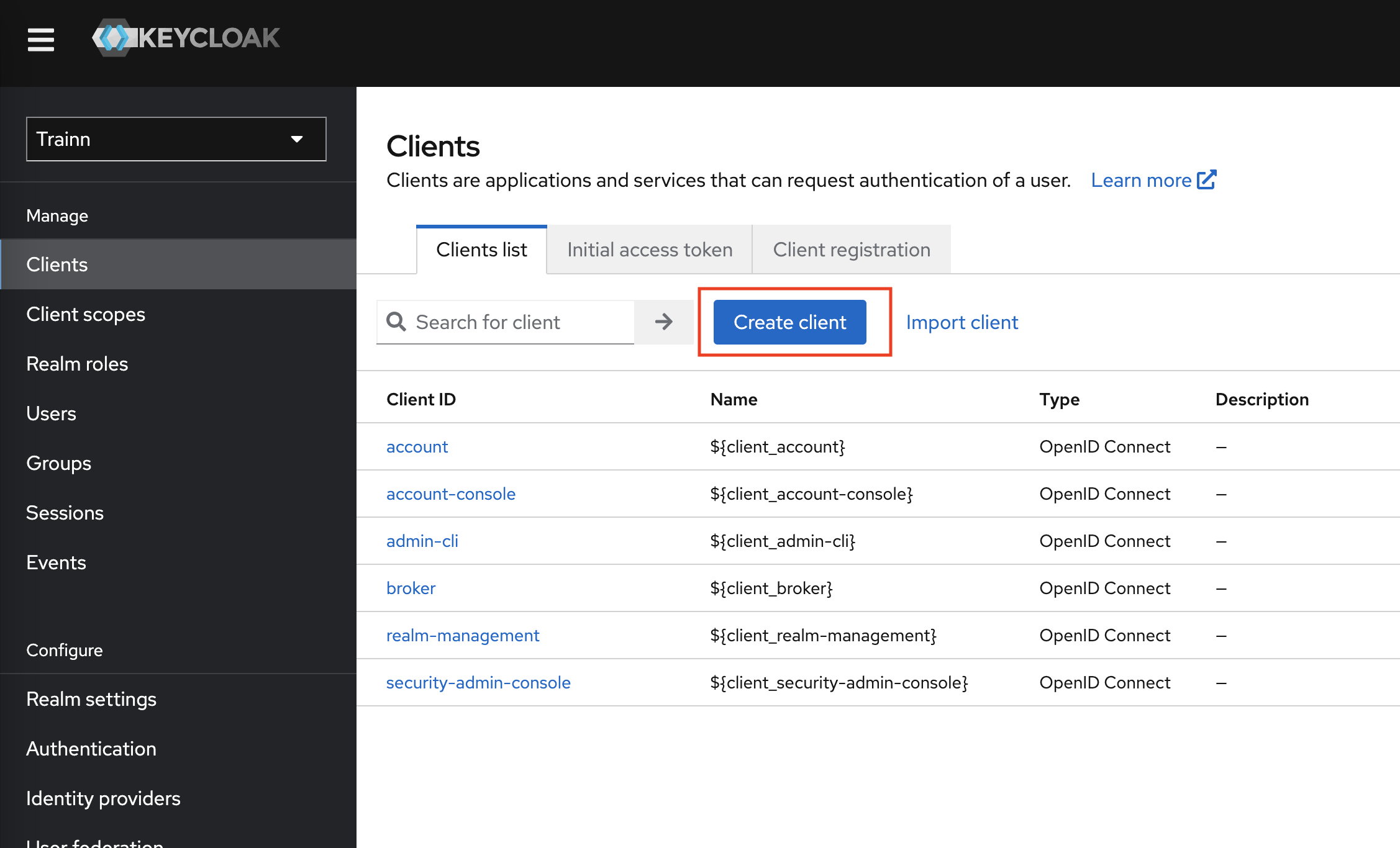
Click on Create Client button to create a client application which can be used to request authentication of a user.
Enter the client id and name of the client and save.
Client ID for hub is https://{workspace-domain-name}.api.trainn.co/hub
Client ID for academy is https://{workspace-domain-name}.api.trainn.co/academy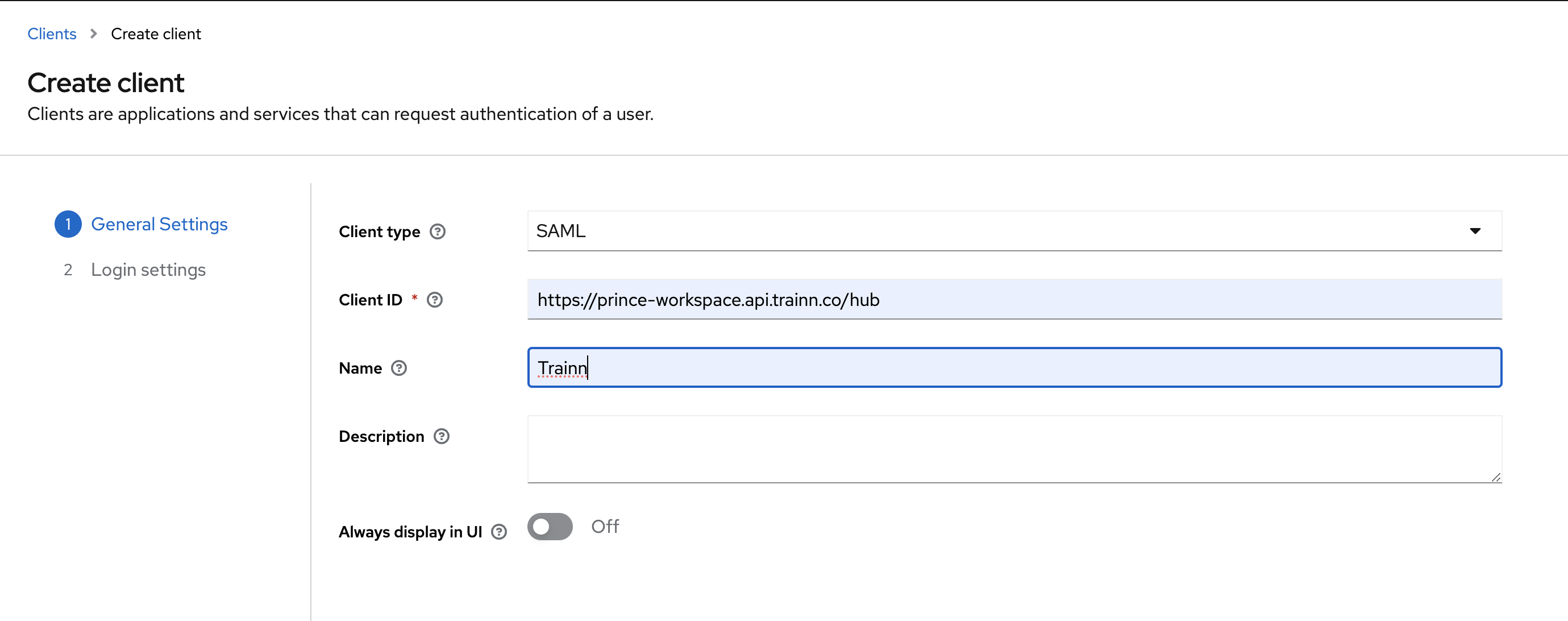
Note: Workspace domain name can be found in the settings page.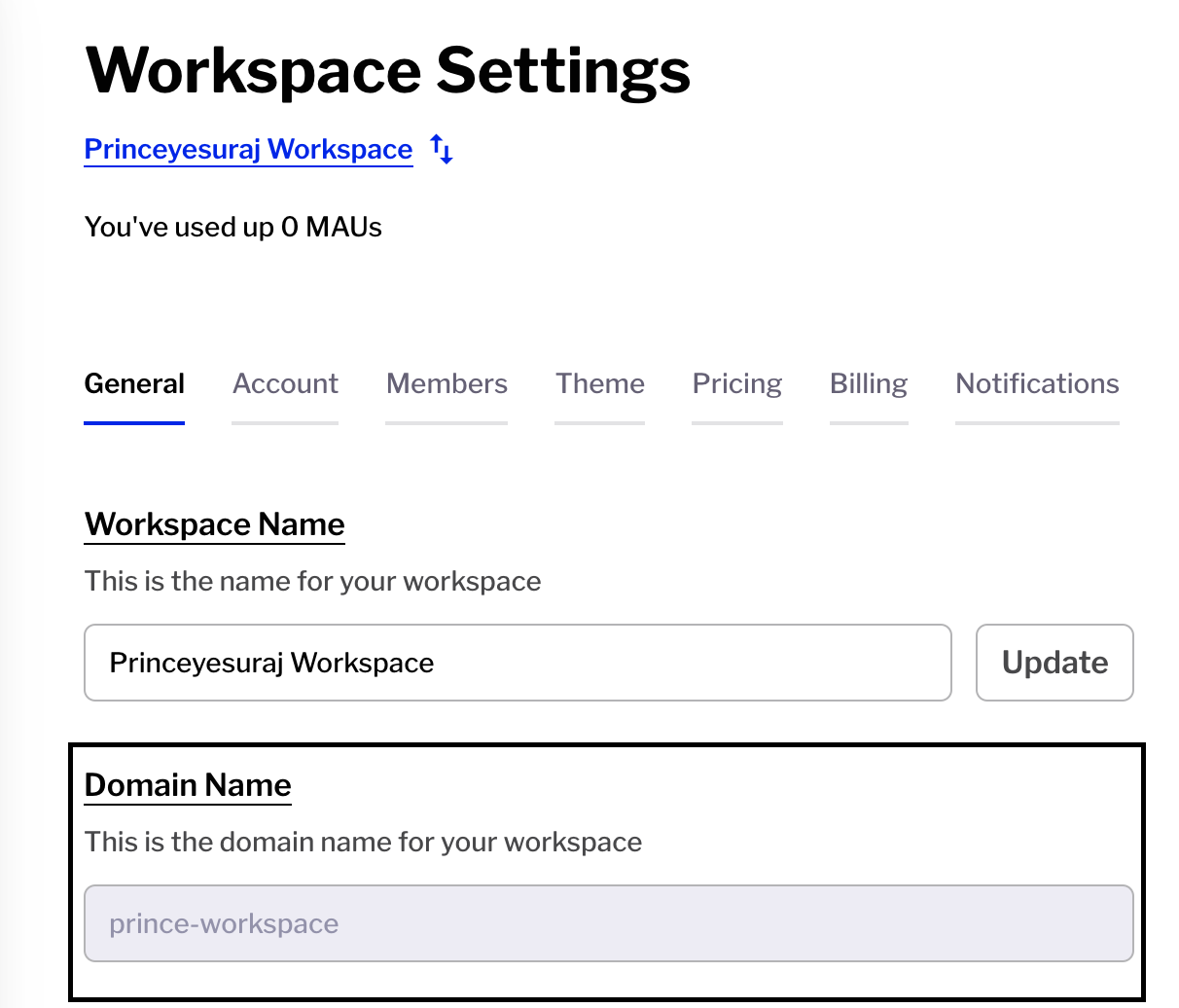
Enter the valid redirect URIs with the following and save.
For hub is https://{workspace-domain-name}.api.trainn.co/hub/saml/acs
For academy is https://{workspace-domain-name}.api.trainn.co/academy/saml/acs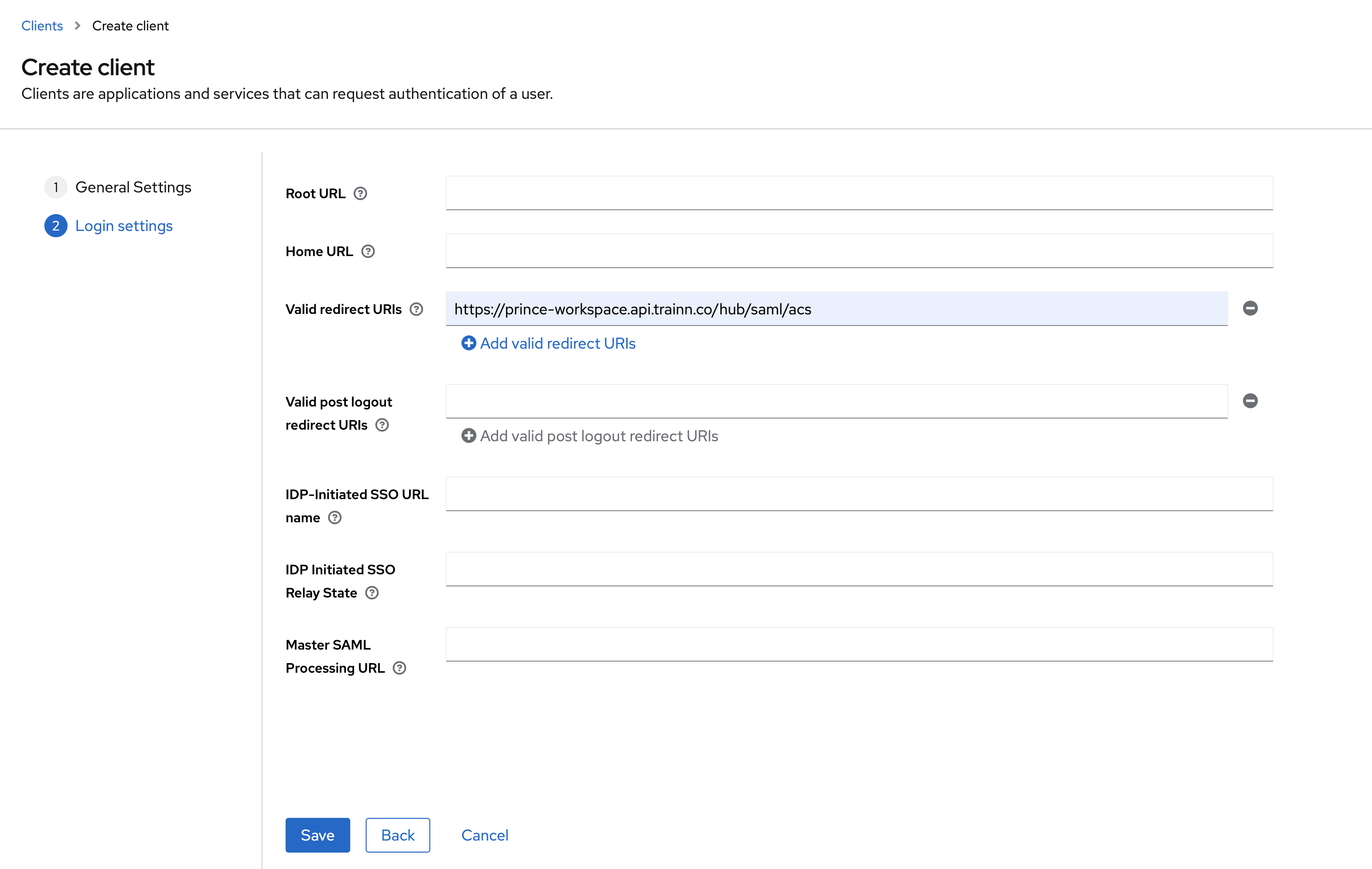
Once client is created click on the client scopes to map the scopes for the protocol
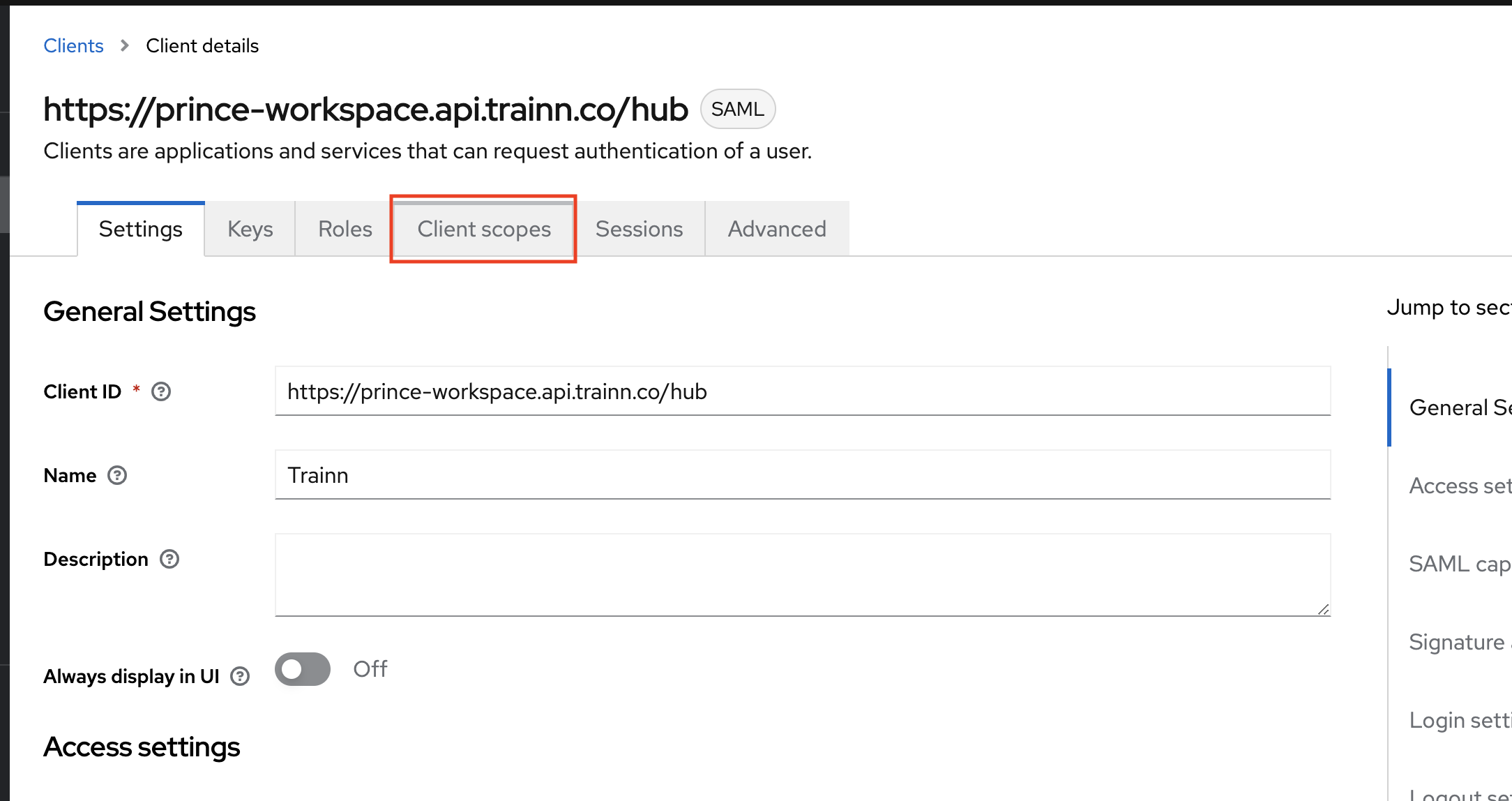
Click on the dedicated scope that is already created or create your own client scope by clicking on Add client scope.
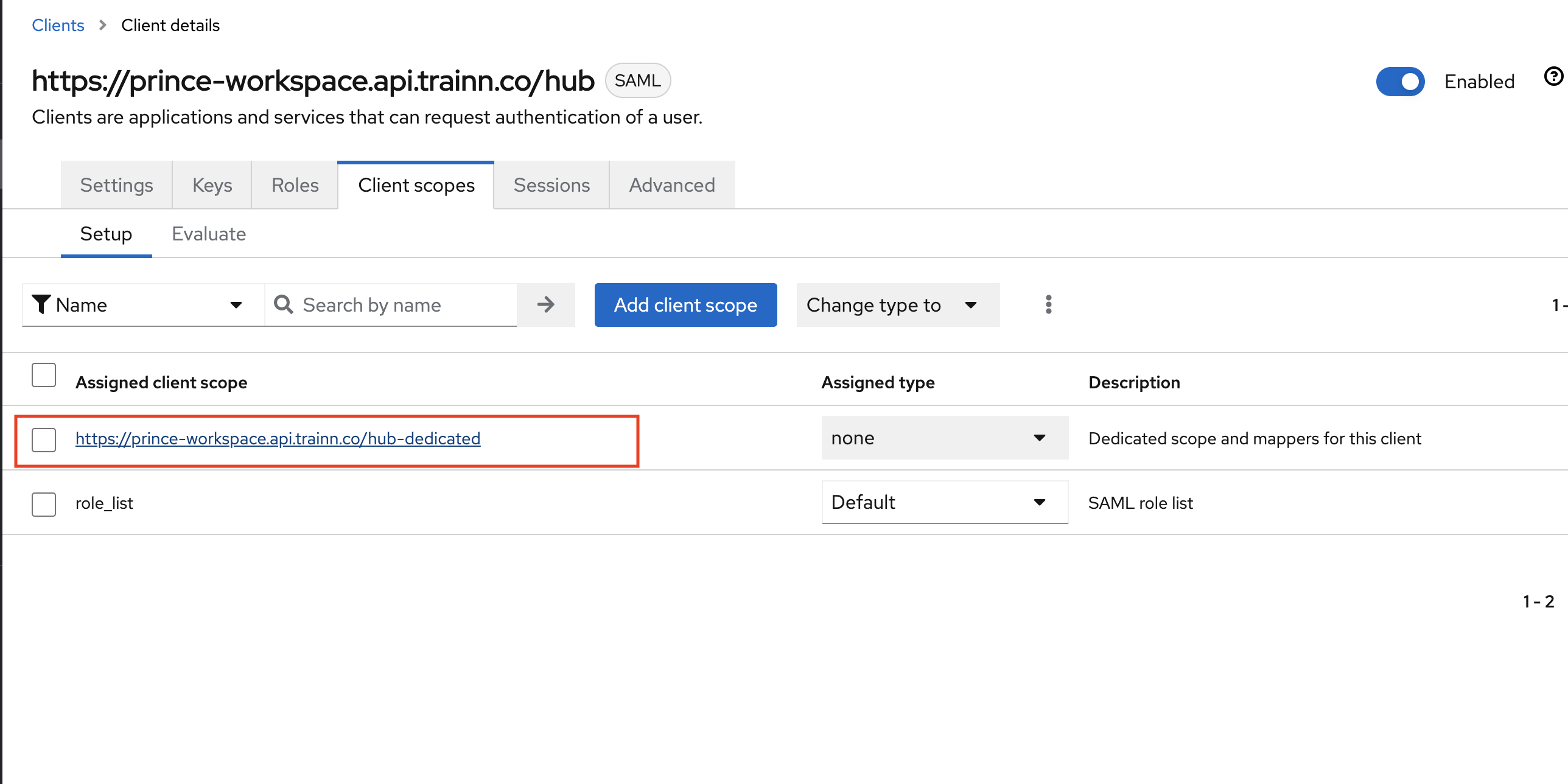
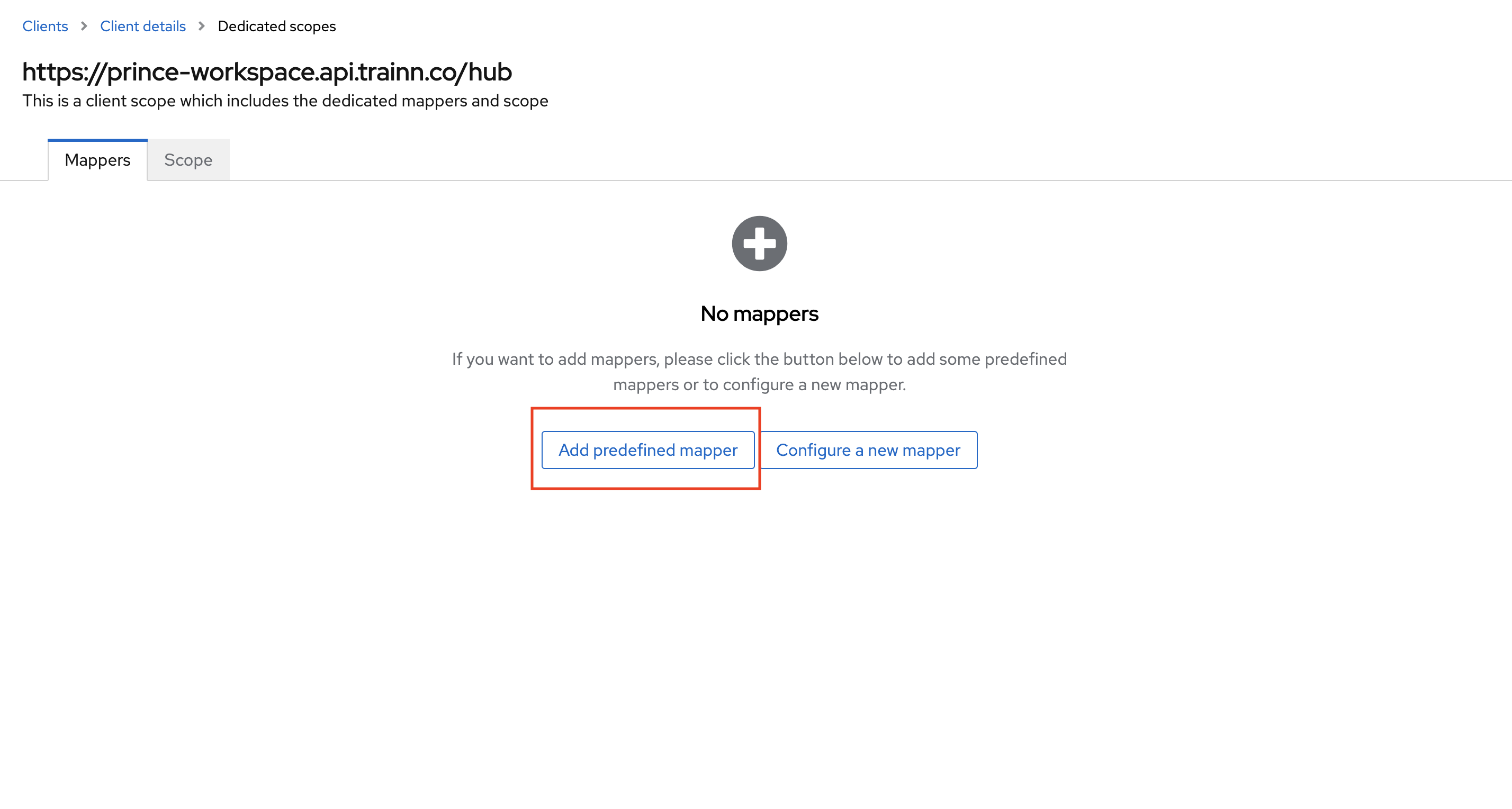
Click on the Add predefined mapper.
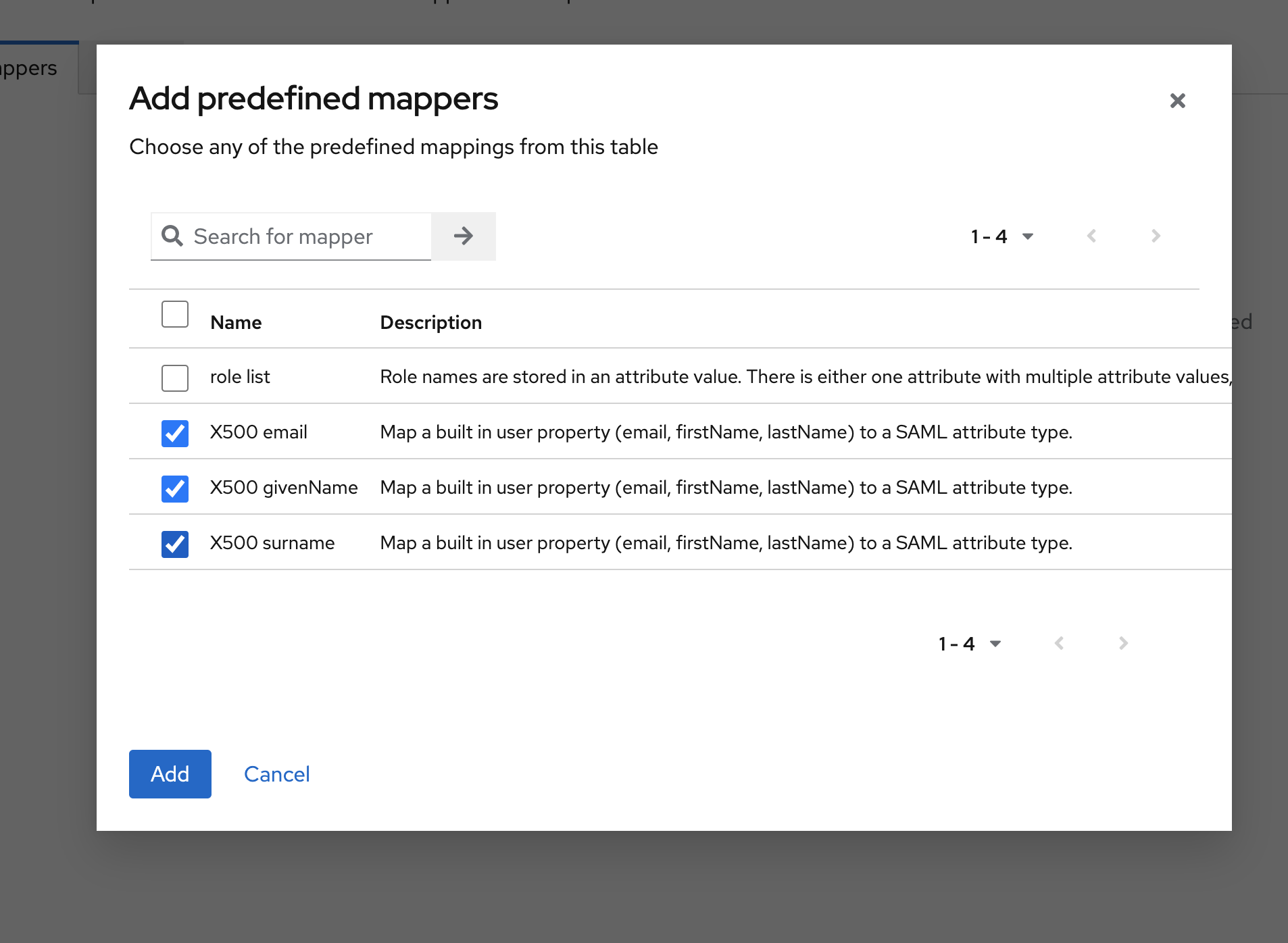
Select X500 email, X500 givenName and X500 surname from the list of predefined mappers and click on add.
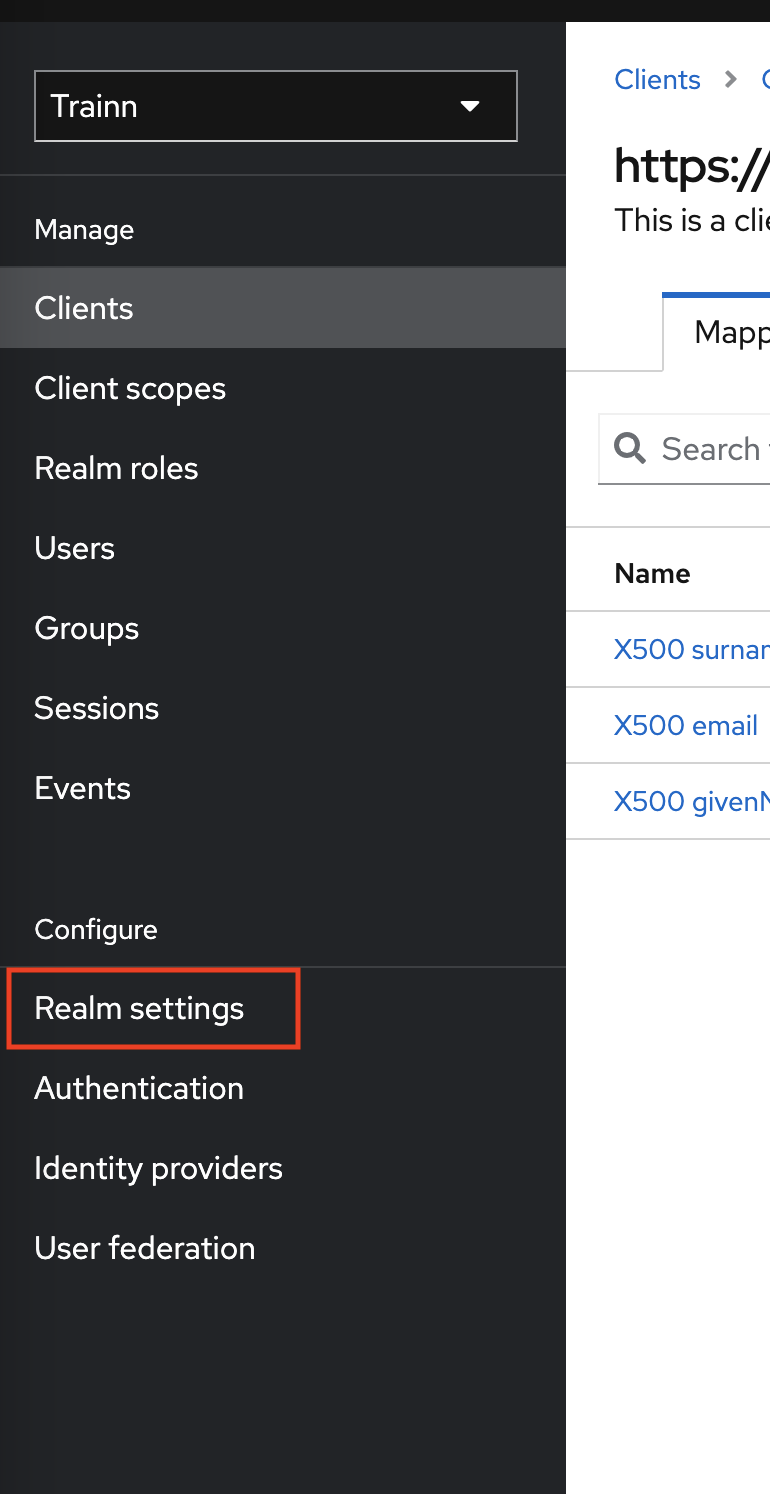
Now that client is configured, to get the Identity provider metadata, click on the Realm settings under Configure section from left navigation menu.
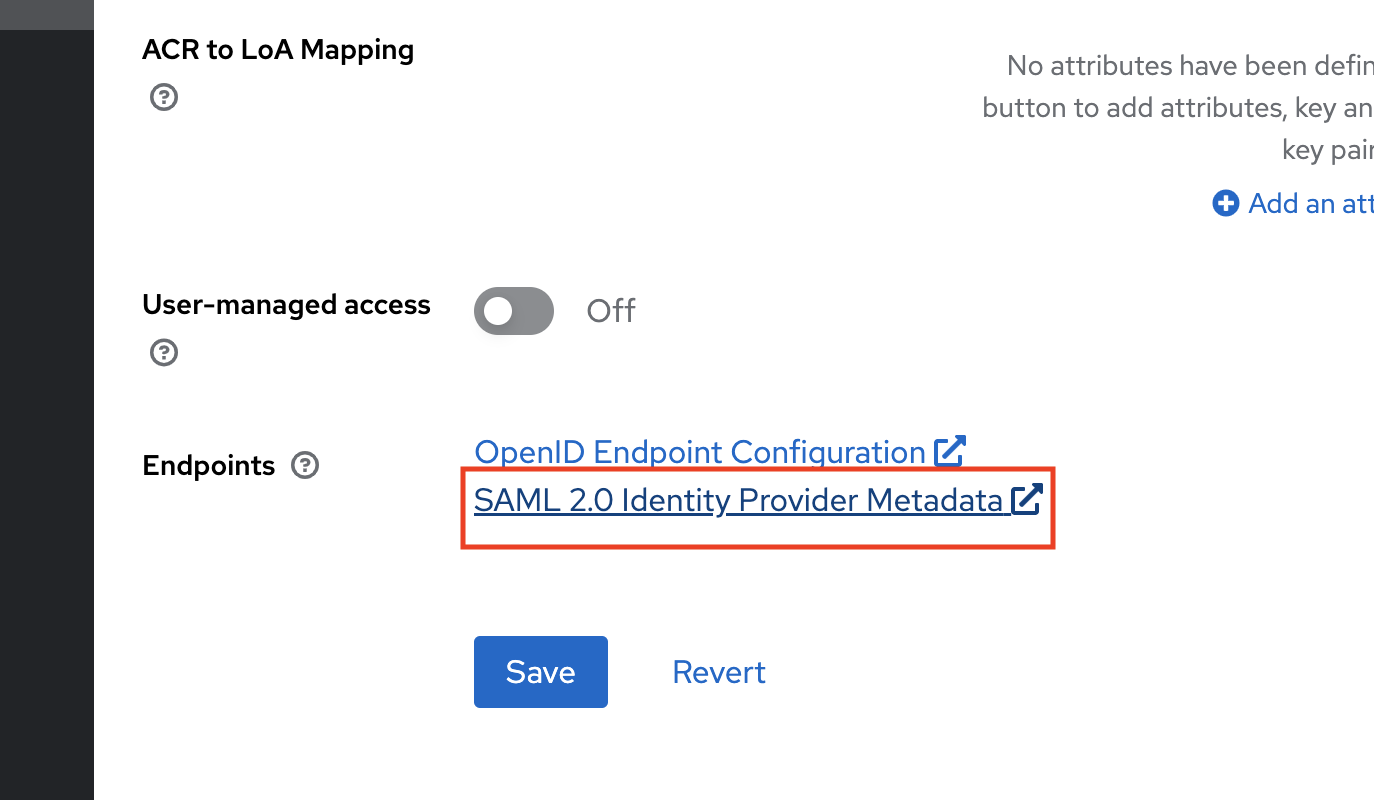
Click on the SAML 2.0 Identity Provide metadata link from Endpoints section to get the Login url and SAML certificate for configuring the Hub or Academy SAML SSO settings in Trainn.